
Button Reference
For simplicity, the four buttons are labelled as follows:
- Button 1 (🔒)
- Button 2 (🔓)
- Button 3 (⚡)
- Button 4 (🔊)
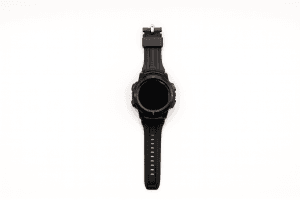
Setting the Time
Enter Time Setting Mode
Press and hold:
Button 4 + Button 1
The display will begin flashing, indicating you are in time adjustment mode.
Adjust Settings
- Press Button 1 to cycle through settings (time, date, week)
- Press Button 2 to change the selected value
Save & Exit
- Press Button 4 to save and exit
Backlight
- Press the 💡 button to turn on the backlight
Programming 433 MHz Buttons
Your watch supports learning (duplicating) 433 MHz remote codes.
There are two main steps:
- Clear existing codes
- Duplicate (learn) new codes
1. Clear Existing Codes
Before programming new buttons, you should clear any existing codes.
How to clear
Press and hold:
Button 3 (⚡) + Button 1 (🔒)
- The indicator will start flashing
- This confirms the memory has been cleared
✔ All previously stored button codes are now removed
2. Duplicate / Learn a New Code
This allows you to copy a signal from another 433 MHz remote.
Enter learning mode
- Press and hold the button you want to program
(Button 1, 2, 3 or 4) - Keep holding until the indicator light turns on or flashes
→ This means it is ready to learn
Copy the signal
- Place the original remote very close to the watch
(ideally within 1–3 cm) - Press the corresponding button on the original remote
- The indicator will flash rapidly, then flash 3 times
✔ This confirms the code has been learned successfully
Repeat for Other Buttons
Repeat the process for each button you want to program.
Tips for Reliable Programming
- Keep remotes very close together
- Use fresh batteries in both devices
- Try slightly different angles if it doesn’t learn first time
- Clear codes again if behaviour is inconsistent
Important for Nauti-Control
For your product:
Reprogramming buttons manually
These remotes are pre-programmed before shipping
Customers do not normally need to use this feature
This is only needed if:
Replacing a remote



Leave a Reply
You must be logged in to post a comment.