The M22 display can show two apps at once. Put your chart app on one side and the Nauti-Control app on the other, and you can watch the chart and steer your autopilot without switching screens. Here’s how, with Navionics, Savvy Navvy and OpenCPN.

Before You Start
- Install your chart app on the M22 from the Play Store and sign in (chart apps need their own account or charts).
- Connect the chart app to your Nauti-Control controller so it shows your boat’s own data: Navionics, Savvy Navvy or OpenCPN.
- Open the chart app once, so it’s in your recent apps.
Split the Screen
- Open the Nauti-Control app.
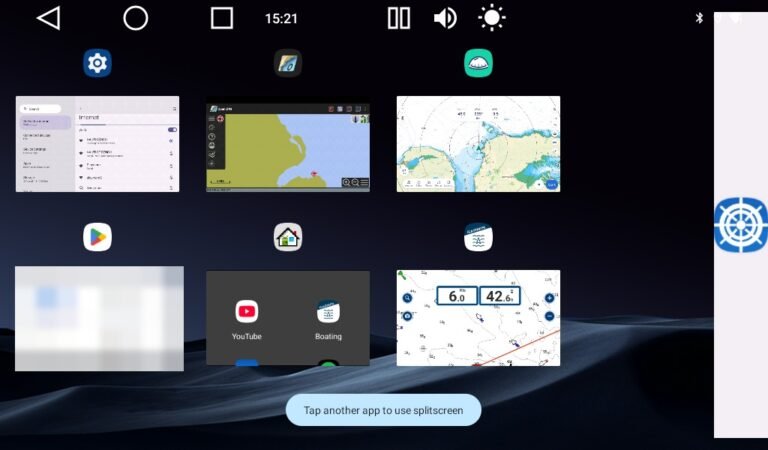
- Tap the square button at the top of the screen to show your recent apps.
- Tap Split under the Nauti-Control app.
- When it says “Tap another app to use splitscreen”, tap your chart app.
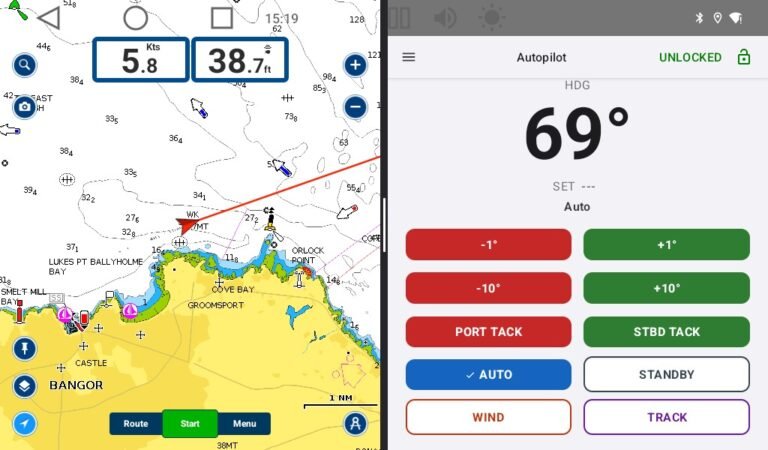
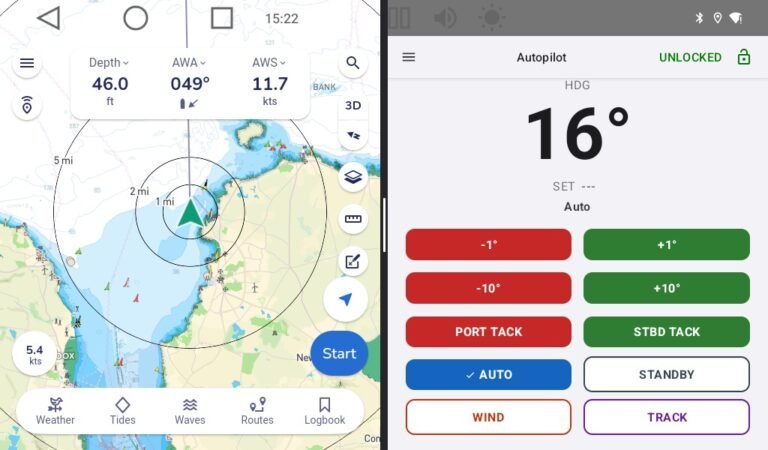
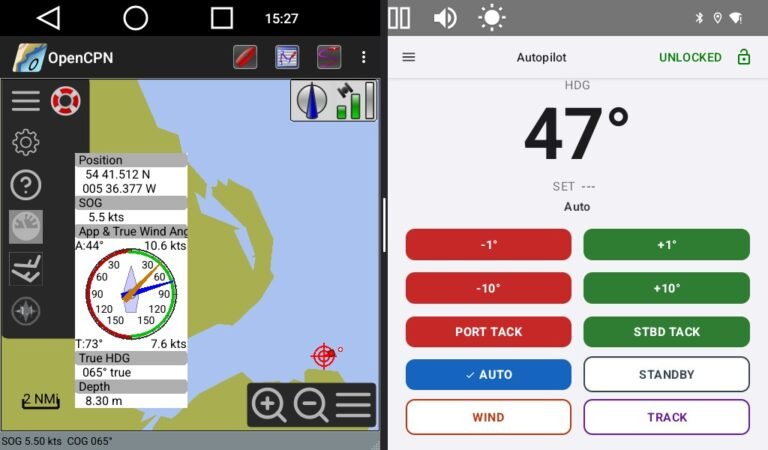
The chart app opens on the left and Nauti-Control on the right, with the autopilot buttons in a layout made for half a screen.
Savvy Navvy and OpenCPN
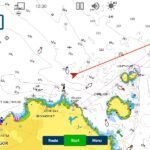
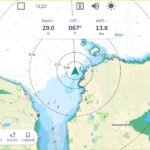
It works the same way with any chart app. Here are Savvy Navvy and OpenCPN, each showing the boat’s own data from the controller.
Good to Know
- Press Home to go back to one app.
- Up to four apps can read the controller’s NMEA data at once. If a chart app stops getting data after you’ve switched between several, close the ones you aren’t using.
- The same split works on most Android tablets: open the recent apps, tap the app’s icon and choose split screen.
Questions? Leave a comment on the video or email admin@nauti-control.com.
Navionics (Garmin), Savvy Navvy and OpenCPN are not connected with Nauti-Control. Nauti-Control and the M22 are supplementary aids, not a replacement for your chartplotter or a proper lookout.

Leave a Reply
You must be logged in to post a comment.