Live boat data and supplementary autopilot control on your Garmin watch. The watch talks straight to the Nauti-Control box over Bluetooth. You do not need your phone on deck.
Store / overview: nauti-control.com/nauti-control-wear
Prefer to watch? This two-minute walkthrough covers every page, recorded in demo mode on a fenix 7:
What you need
- A Nauti-Control box (ST Wireless or N2K Wireless), powered and in range
- A supported Garmin watch (see Compatible watches below)
- The Garmin Connect phone app, for installation and settings
- The box PIN, if your firmware has one set
The watch app is free. The Nauti-Control box is what you buy.
Install
- On your phone, open Garmin Connect.
- Go to Connect IQ Store — Devices → your watch → Connect IQ.
- Search for Nauti-Control.
- Install it on the watch and wait for the sync to finish.
- On the watch, open Apps (or Activities & Apps) → Nauti-Control.
First launch
- Read the warning screen. Confirm with SELECT or a tap.
- The watch starts scanning for a Nauti-Control box.
- Power the box on and keep it nearby. A few metres is enough.
Demo mode — no box required
Demo mode lets you learn the pages before you are on the boat.
- Touch watches: tap the Demo button on the connection screen.
- Button watches: press MENU.
Demo data is simulated. Autopilot commands are not sent to a real pilot.
Pair and connect
- Wait until the watch finds one or more Nauti-Control boxes.
- If more than one appears, open Select Device.
- Touch: tap the required device.
- Buttons: use UP / DOWN to highlight it and SELECT to connect.
- If the box asks for a PIN:
- UP / DOWN change the current digit.
- SELECT moves to the next digit.
- MENU submits the PIN.
- BACK steps back a digit, or leaves PIN entry when used on the first digit.
After a correct PIN — or immediately if the box has no PIN set — the watch opens the instrument pages.
The watch remembers the box for the next launch. If several Nauti-Control boxes are in range, you may be asked to select one again.
Connection tips
- Up to four Bluetooth clients can be connected to one Nauti-Control box at once, for example a watch, phone and tablet.
- If the scan finds nothing, power-cycle the box, move closer and check that four other devices are not already connected.
- If the watch connects to the wrong box, go back and select the correct device from Select Device.
Instrument pages
Swipe UP / DOWN, or use the bezel / swipe controls on touch watches.
The page order is fixed:
- Speed & Heading
- Wind
- Autopilot — touch watches also get a separate AP Control page
- Voyage
Speed & Heading
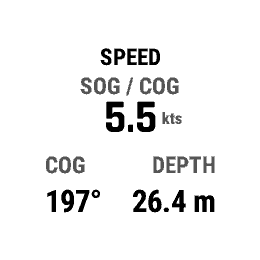
Shows speed, course or heading, and depth.
- The default view is SOG / COG — speed and course over ground received from the Nauti-Control box.
- Press SELECT or tap the screen to switch to STW / HDG — speed through water and heading.
- Depth uses the unit selected in App Settings: metres or feet.
GPS for SOG
GPS for SOG is optional and is configured in App Settings. When enabled, the watch’s own GNSS position is used to calculate SOG instead of the value received from the Nauti-Control box.
Leave this setting off unless you specifically want to use the watch GPS. Indoors, watch GPS may show -- or 0 while waiting for a fix.
Wind
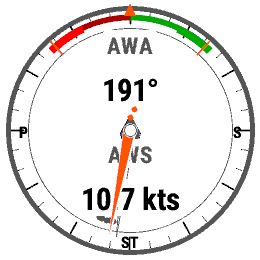
Displays apparent or true wind, including wind angle, wind speed and sailing-angle arcs.
- Press SELECT or tap to switch between apparent and true wind.
- Wind angle format can be set to 0–360° or port / starboard in App Settings.
- The layline angle used for the sailing arcs is also configurable in App Settings.
Autopilot
The Garmin watch provides supplementary control of a compatible Raymarine, Simrad, B&G or NMEA 2000 autopilot through the Nauti-Control box.
It is not a Garmin autopilot remote and does not control Garmin Reactor / GHC systems directly.
Touch interface
This is the default interface on watches such as the fēnix 7, Epix and Venu series.
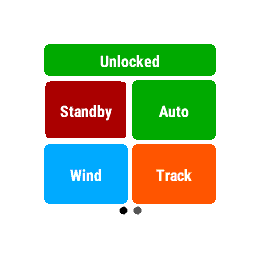
- Mode page: Standby, Auto, Wind and Track.
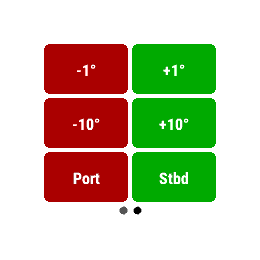
- Control page: −1°, +1°, −10°, +10° and Tack when enabled.
- Tap the control you want to send.
- Tack commands ask for confirmation before being sent.
You can change a touch watch to the hardware-button interface in Garmin Connect using AP Interface → Watch buttons.
Watch-button interface
This is the default interface on button-only watches.
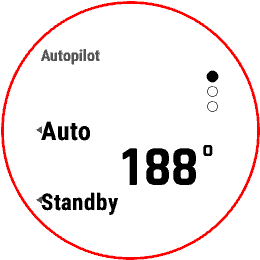
There are three control pages. UP and DOWN send the mapped command. SELECT arms control / cycles the button page.
| Page | UP — default | DOWN — default |
|---|---|---|
| 1 | Auto | Standby |
| 2 | +1° | −1° |
| 3 | +10° | −10° |
The six slots can be remapped from Garmin Connect App Settings.
Available commands include Auto, Standby, Auto-Standby toggle, ±1°, ±10°, Wind, Track, mode cycle, port tack, starboard tack, MOB, cancel MOB and timer.
Autopilot lock
When AP Lock is enabled on the Nauti-Control box, pressing SELECT on the autopilot page can override the lock. A lock notification is shown on the watch.
Treat this as a deliberate override. It is not a substitute for maintaining a proper watch and monitoring the vessel.
Voyage
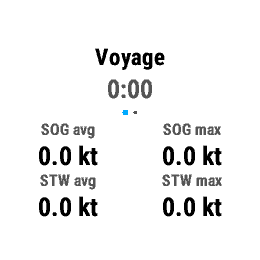
The Voyage page starts a native Garmin Sailing activity, or Generic activity on some older watches. The completed activity synchronises with Garmin Connect.
- Press SELECT to start recording.
- Press SELECT again while recording to open Save / Discard / Continue.
- Statistics include time, distance, average and maximum SOG, STW, wind and depth range.
Distance and the recorded track use the watch’s GPS. Leave GPS enabled if you want a useful track to appear in Garmin Connect.
Settings
Settings are configured in Garmin Connect on your phone, rather than directly on the watch.
- Open Garmin Connect.
- Select your watch.
- Open Connect IQ → Nauti-Control → Settings.
- Change the required settings.
- The watch loads the settings the next time the app opens, or after Garmin Connect has completed a sync.
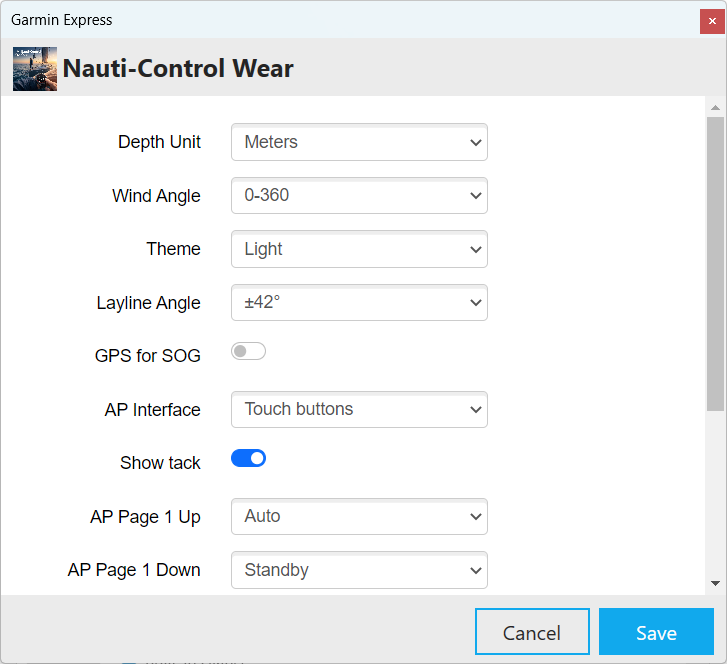
| Setting | What it does |
|---|---|
| Depth Unit | Metres or feet |
| Wind Angle | 0–360° or port / starboard |
| Theme | Dark, high contrast or light |
| Layline Angle | Wind-page layline arcs from 35–50° |
| GPS for SOG | Use the watch GNSS instead of SOG received from the Nauti-Control box |
| AP Interface | Touch controls or watch UP / DOWN button pages |
| Show tack | Show or hide tack controls |
| AP Page 1–3 Up/Down | Select the command assigned to each hardware button slot |
If Settings does not appear, wait for Garmin Connect to finish syncing, then open Nauti-Control again from Connect IQ.
Glance
On watches that support Connect IQ glances, add Nauti-Control to the glance carousel.
The glance displays a one-line summary including autopilot mode, SOG and wind when the app is in the background and is still connected.
Wrist down / always-on display
With the wrist down, the app displays a simpler single-metric layout. Raise your wrist to return to the full instrument page.
The Bluetooth connection remains active. The coloured status dot indicates whether the boat data is current or has gone stale.
Compatible watches
Nauti-Control is a Garmin Connect IQ app. The following is a family-level compatibility list and does not include every individual retail SKU.
- fēnix 5 Plus, 6 Pro, 7 / 7 Pro and 8, including related quatix / tactix models where listed in the Connect IQ Store
- Epix 2 / Epix 2 Pro
- Venu 2 / 2 Plus / 3 / 4
- Forerunner 255 / 265 / 955 / 965 / 970
- Vivoactive 5 / 6
- Enduro 3
- MARQ Gen 2
- D2 Mach 1 / 2
fēnix 6 non-Pro models are not supported.
If your model is not listed as compatible in the Garmin Connect IQ Store, the Nauti-Control app is not available for that watch.
Compatible boat systems
The Garmin watch communicates with the Nauti-Control box. It does not connect directly to a Garmin Reactor or GHC autopilot system.
- ST Wireless — classic Raymarine / Autohelm SeaTalk 1 pilots
- N2K Wireless — NMEA 2000 / SeaTalk NG systems, including compatible Raymarine Evolution, Simrad, B&G and listed Lowrance pilots
Nauti-Control is not an official Raymarine, Simrad or B&G product.
Troubleshooting
| Problem | What to try |
|---|---|
| Watch never finds the box | Check that the box is powered, move closer, disconnect another phone or tablet if necessary, and restart the watch app. |
| PIN rejected | Check the 4-digit PIN configured on the Nauti-Control box. Press MENU to submit the PIN. |
SOG shows -- or 0 | Confirm the page is showing SOG / COG. Turn GPS for SOG off unless you specifically want the watch GPS. Check that the Nauti-Control box is receiving GPS speed from the boat network. |
| Settings missing on the phone | Wait for Garmin Connect to finish syncing, then open Connect IQ → Nauti-Control → Settings again. |
| Autopilot does nothing | Check autopilot lock and PIN settings. Confirm the Nauti-Control box is connected to a supported autopilot and confirm any mode or course change on the helm instruments. |
| Voyage has no track | Allow the watch to obtain a GPS fix outdoors. |
| App closes when BACK is pressed | On the first page, BACK exits the app. Go to another page first if you do not want to exit. |
Safety
- Always watch the water, traffic and sails.
- Do not use the Garmin watch app as a primary navigation instrument.
- Confirm autopilot mode on the helm instruments after sending a watch command.
- Tack and MOB commands sent from the wrist still require a human on deck and proper situational awareness.
Support and shop
For Nauti-Control products, downloads, guides and support, visit nauti-control.com.


Leave a Reply
You must be logged in to post a comment.