Firmware v3.4 is the first version that can update itself from the app. To get there, a controller on v3.3 (or any version from V3.0) needs one last update from its own web page. It takes about ten minutes, and your settings are kept: PIN, controller name, Wi-Fi, autopilot type and keel offset.
The order matters this time: install the filesystem first, then the firmware. v3.4 firmware only accepts signed updates, and the old v3.3 web page can’t send them. Putting the filesystem on first gives you the new v3.4 Update page, and that page installs the signed firmware.
Use an up-to-date browser. The new Update page opens the release package inside your browser, which needs a recent Chrome, Edge, Firefox or Safari (on iPhone and iPad, iOS 16.4 or later). An older browser shows “This browser cannot read compressed zip entries”. If you see that, use another phone, tablet or computer, or update the browser.
What You Need
- Your controller on firmware V3.0 or newer. On an older version, or if you can’t reach its web page, use the USB Firmware Flasher instead (see the end of this guide).
- A phone, tablet or computer with a web browser that can join the controller’s Wi-Fi.
- The controller’s web admin password: the one you chose at first setup.
- The autopilot in Standby, and the boat safely tied up. The controller restarts twice and is out of contact for a minute or so each time.
1. Download the Two Files
Download these onto the device you will use for the update, while it still has internet:
filesystem-v3.4.0.bin: the controller’s web pages. The same file for both controller types.- The signed release package for your controller:
nauti-firmware-v3.4.0-n2k.zipfor the N2K Wireless, ornauti-firmware-v3.4.0-seatalk.zipfor the ST Wireless (SeaTalk). Don’t unzip it.
- Download filesystem-v3.4.0.bin (448 KB)
- N2K Wireless: Download nauti-firmware-v3.4.0-n2k.zip
- ST Wireless (SeaTalk): Download nauti-firmware-v3.4.0-seatalk.zip
Keep the file names as they are: the update page checks them, and a renamed copy such as filesystem-v3.4.0 (1).bin is refused.
2. Join the Controller’s Wi-Fi and Sign In
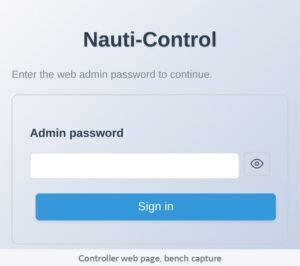
Join the controller’s Wi-Fi network (it is named after your controller). Open a browser, go to 192.168.1.1, enter your web admin password and tap Sign in. If your controller is on your boat’s own network, use the address it has there instead.
3. Open the Update Page
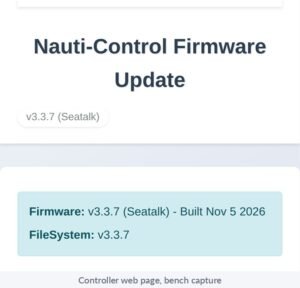
Tap Update in the menu. The page shows the firmware and filesystem the controller is running now, both v3.3.
4. Install the Filesystem First
- Scroll down to FileSystem Update and tap Select FileSystem File (.bin). Choose
filesystem-v3.4.0.bin. - Tap Upload FileSystem and leave the page open while the bar fills.
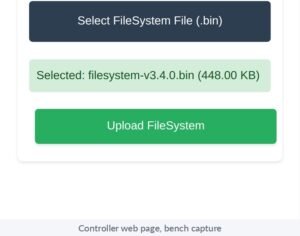
When the bar reaches 100% the controller restarts. The v3.3 page may then say “Upload error! Please check your connection and try again.” This is the old page losing touch as the controller restarts: the upload worked. Don’t upload it again.
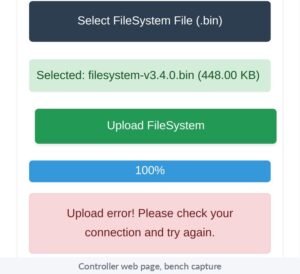
5. Reload the Update Page
Wait about a minute. If your device has dropped off the controller’s Wi-Fi, join it again. Then reload the page (pull down on a phone, or press the reload button), and sign in again if asked.
The Update page now looks different: the firmware button reads Select Release Package (.zip). If it still says Select Firmware File (.bin), your browser is showing an old copy: reload again.
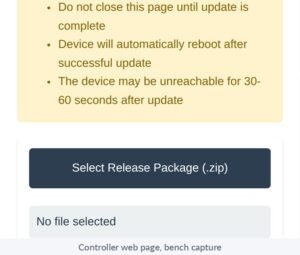
6. Install the Firmware From the Release Package
- Tap Select Release Package (.zip) and choose your controller’s package. The page reads it and shows Release 3.4.0 with your controller type (n2k or seatalk).
- Tap Upload Firmware and leave the page open.
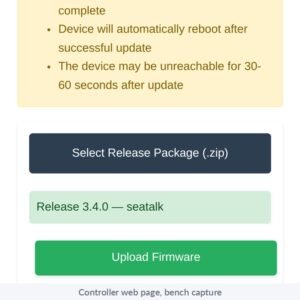
The controller restarts at the end. Again the page may say “Upload error!”: wait a minute and reload rather than uploading again.
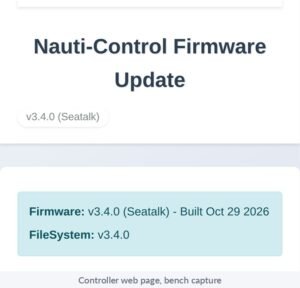
7. Check Both Read v3.4.0
Open the Update page again. Firmware and FileSystem should both show v3.4.0.
8. Update the Apps and Reconnect
Update the Nauti-Control app on your phone, tablet and watch to v3.4 from the App Store or Google Play, then connect as usual. Your PIN and settings are kept.
From now on you don’t need this page: future firmware updates come from Firmware update in the app, over Bluetooth or Wi-Fi.
If Something Goes Wrong
- “Upload error!” at 100%: normal on the v3.3 page. Wait a minute, reload, and check the versions at the top of the Update page.
- “Filename must be…”: the file was renamed when it downloaded. Rename it back, or delete the old copy and download it again.
- “This hub only installs signed releases…”: you chose a
.binon the new page. Choose your controller’s release package (.zip) instead. - Installed the firmware first by mistake? See Already Installed the Firmware First? below.
- The page won’t load after a restart: wait another minute, rejoin the controller’s Wi-Fi, and go to 192.168.1.1 again.
- Still stuck, or your controller is older than V3.0: use the USB Firmware Flasher in Google Chrome with the complete USB image. This resets the controller to factory settings, so note your PIN, name, Wi-Fi, autopilot type and keel offset first, and set it up again afterwards.
Already Installed the Firmware First?
If you installed the v3.4 firmware before the filesystem, the Update page shows Firmware: v3.4.0 with FileSystem: v3.3.x and a note that the versions differ, and the filesystem upload is refused with “Upload failed! Status: 400 — Update refused: hash_mismatch”. (Sometimes the old page even says the upload worked, but the version still reads v3.3 afterwards.)
Your controller is safe and working. The v3.4 firmware is installed and runs your autopilot and instruments as normal; only the controller’s own web pages are still the old ones. The old page can’t finish the job, because v3.4 only accepts signed updates, but the v3.4 app can:
- Update the Nauti-Control app on your phone or tablet to v3.4 and connect to the controller as usual (Bluetooth or Wi-Fi). Do this where the phone also has internet, so the app can download the release.
- Open Device Settings → Firmware update. It says the controller is up to date, because the firmware already is.
- Press and hold the Firmware version line for about two seconds, until Reinstall of the current version enabled appears. (Holding it again switches it off.)
- Tap Download, then Reinstall this version, then Install. The app sends the filesystem and then the firmware, and the controller restarts once. Keep the phone near the controller until it says Update complete — hub is on 3.4.0.
- Firmware and filesystem now both read v3.4.0.
If you can’t use the app, the USB Firmware Flasher in Google Chrome puts the complete v3.4 image on over a USB cable. This resets the controller to factory settings, so note your PIN, name, Wi-Fi, autopilot type and keel offset first and set it up again afterwards.
Stuck? Email admin@nauti-control.com with your controller type and what the Update page shows, and we’ll help.
Found a bug, or something not working as expected? Email admin@nauti-control.com with your controller type (N2K or SeaTalk), your autopilot and the device you used.
Release notes for every firmware version are on the Firmware Updates & Release Notes page.

Leave a Reply
You must be logged in to post a comment.