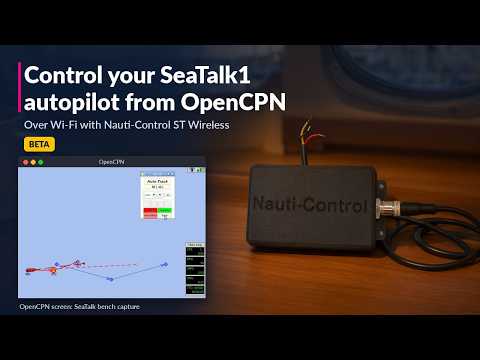
From v3.4, the Nauti-Control ST Wireless controller lets OpenCPN drive a SeaTalk1 autopilot over Wi-Fi. OpenCPN’s free Raymarine autopilot plugin puts Auto, Standby, ±1°, ±10° and Track buttons on the chart screen, and the controller passes them to your pilot on the SeaTalk bus. This is a beta feature.
What You Need
- A Nauti-Control ST Wireless controller on firmware v3.4, connected to your SeaTalk1 bus. (The N2K Wireless controller does not have this bridge.)
- A SeaTalk1 autopilot, for example an ST1000+ / ST2000+ tillerpilot, or an S1, S2 or S3 SmartPilot.
- OpenCPN on a laptop or tablet that can join the controller’s Wi-Fi.
- The Raymarine autopilot plugin by Bernd Cirotzki, from OpenCPN’s plugin catalog.
We tested it with OpenCPN 5.12.4 and plugin version 2.3.5.0, driving an ST1000+ tillerpilot.
1. Connect to the Controller
Join your laptop to the controller’s Wi-Fi network, or to the boat’s network if the controller is connected to it. The controller sends and receives NMEA 0183 on TCP port 8091.
2. Add the Connection in OpenCPN
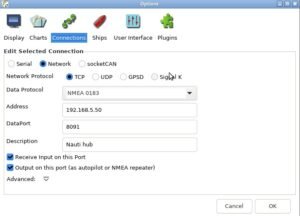
In OpenCPN, open Options → Connections and add a new connection:
- Network, Network Protocol TCP, Data Protocol NMEA 0183.
- Address: the controller’s IP address. Connected directly to the controller’s own Wi-Fi this is normally 192.168.1.1.
- DataPort: 8091.
- Tick Receive Input on this Port and Output on this port (as autopilot or NMEA repeater). The plugin’s commands leave OpenCPN through the output side.
Once connected, OpenCPN shows the boat data the controller relays.
3. Install the Raymarine Autopilot Plugin
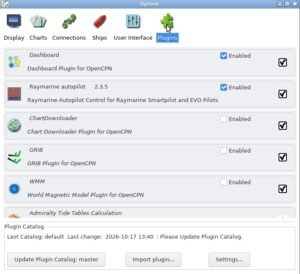
- Open Options → Plugins and press Update Plugin Catalog.
- Find Raymarine autopilot in the list and install it.
- Tick its box to enable it. A new autopilot icon appears on the toolbar.
4. Set the Plugin Up
Select the plugin in the list and press Preferences:
- Autopilot Type: Raymarine Seatalk1 Autopilots (S1,S2,S3, …), connected over NMEA0183/Seatalk1 translater.
- Leave both sentence names at their default, STALK. The controller sends and receives
$STALKsentences.

5. Drive the Pilot
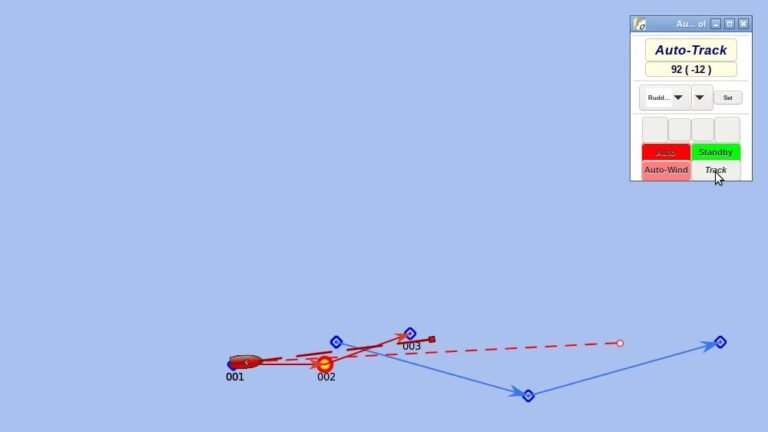
Click the autopilot icon to open the Autopilot Control panel. It shows the pilot’s mode and course, read live from the SeaTalk bus.
- Auto engages the pilot on its current heading. Standby releases it.
- -1, -10, +10, +1 change course by those degrees while the pilot is in Auto.
- Track: activate a route in OpenCPN and engage Auto. Press Track: the pilot asks to confirm the waypoint (the panel shows Next WayP.). Press Track again and it steers the route (Auto-Track). At each waypoint the pilot sounds its alarm; press Track to accept the turn to the next one.
Good to Know
- With the plugin’s Allow use AUTO-COG function option ticked, the Auto button reads AutoCOG once the pilot is engaged, as in our video.
- If the panel shows dashes, the plugin is not hearing the pilot: check the connection and that the pilot is powered on the SeaTalk bus. The buttons do nothing until it does.
- When the autopilot is locked in the Nauti-Control app, the controller blocks autopilot commands from OpenCPN too.
- The plugin has optional extras (AutoCOG, automatic Track, re-sending Auto-Wind). Its author warns to use them with care; we have not tested them.
- This is a beta feature. OpenCPN and the plugin are made by others; Nauti-Control passes the pilot commands through. Please report any problems to admin@nauti-control.com.
OpenCPN is an aid alongside your chartplotter and a proper lookout, not a replacement for either. Keep someone ready to take the helm.
Leave a Reply
You must be logged in to post a comment.