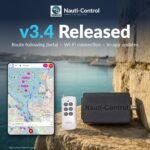
Nauti-Control firmware v3.4 is available for both SeaTalk and N2K controllers, alongside updated phone, tablet and watch apps.
This is the biggest release since V3. The apps can now steer your autopilot along a route, mark by mark (in beta). The controller can be reached over Wi-Fi as well as Bluetooth. And from v3.4 on, firmware updates come from the app.

Waypoints and Routes
The apps now keep your own marks and routes.
- Drop a waypoint by long-pressing the chart, or import waypoints and routes as a GPX file from your plotter or planning software.
- Go To steers to a single mark. Follow works through a route, leg by leg.
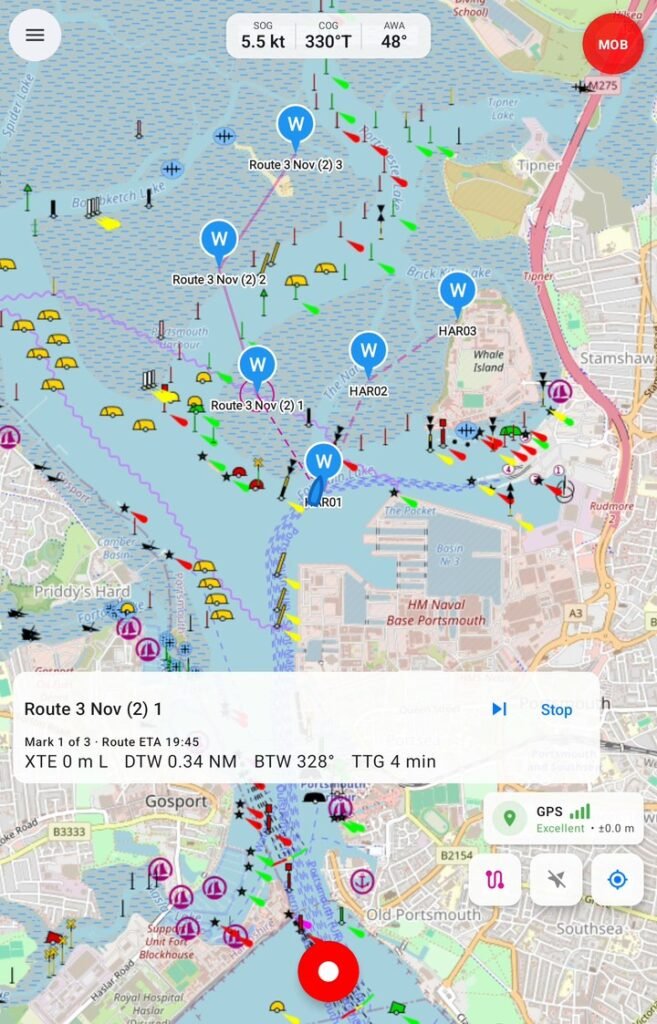
- While you navigate, the app shows which leg you are on, the distance and bearing to the mark, your cross-track error and the time to go.
- If you can’t lay a mark, Skip moves on to the next one.
- A leg also ends when you sail past the mark, so a tight arrival circle won’t strand a route.
Your Autopilot Follows the Route (Beta)
The route isn’t just drawn on the phone. The app sends the active leg to the controller, over Bluetooth or Wi-Fi. The controller then puts it on the boat’s own bus, and your pilot steers it in Track mode.
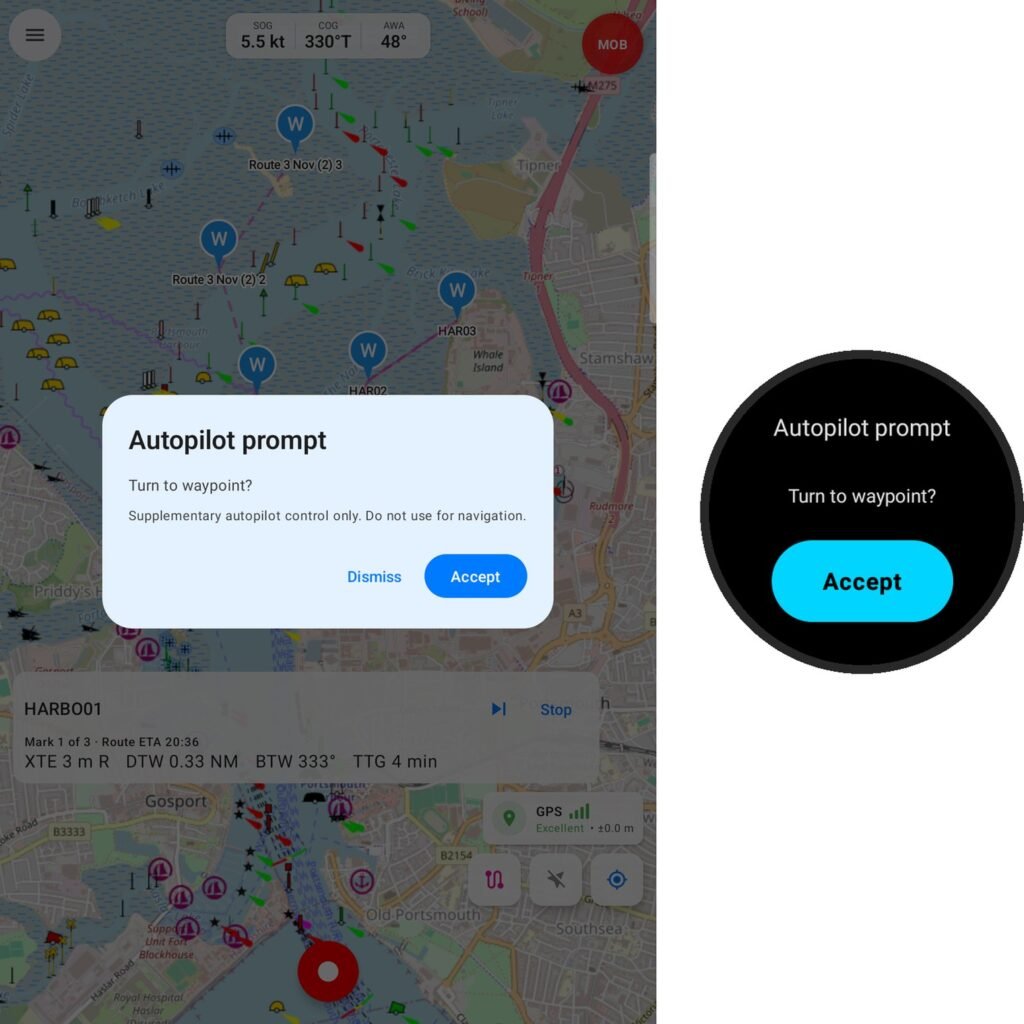
- The pilot’s own questions come to the app. When the autopilot asks “Turn to waypoint?” at a new leg, the question appears in the app with an Accept button. It also appears on your Garmin, Apple Watch or Wear OS watch, with a buzz, so you can answer it from the bow.
- At the last mark, the app tells you the route is finished. A Raymarine pilot then drops from Track to Auto rather than wandering off.
- Stopping navigation tells the boat that navigation has ended, rather than just going quiet.
We tested this on the bench with a Raymarine Evolution (EV-1 and p70), a SeaTalk ST1000 tillerpilot, a B&G AC42 and a Garmin Reactor 40, each steering routes from the apps.
Garmin Reactor
A Garmin Reactor autopilot now follows your routes too. Engage AUTO, then TRACK, and the pilot stays in Track from one leg to the next, with no question to answer. The apps also now show the Reactor’s own mode and set heading.
Simrad TP22 and TP32 (HR22 mode)
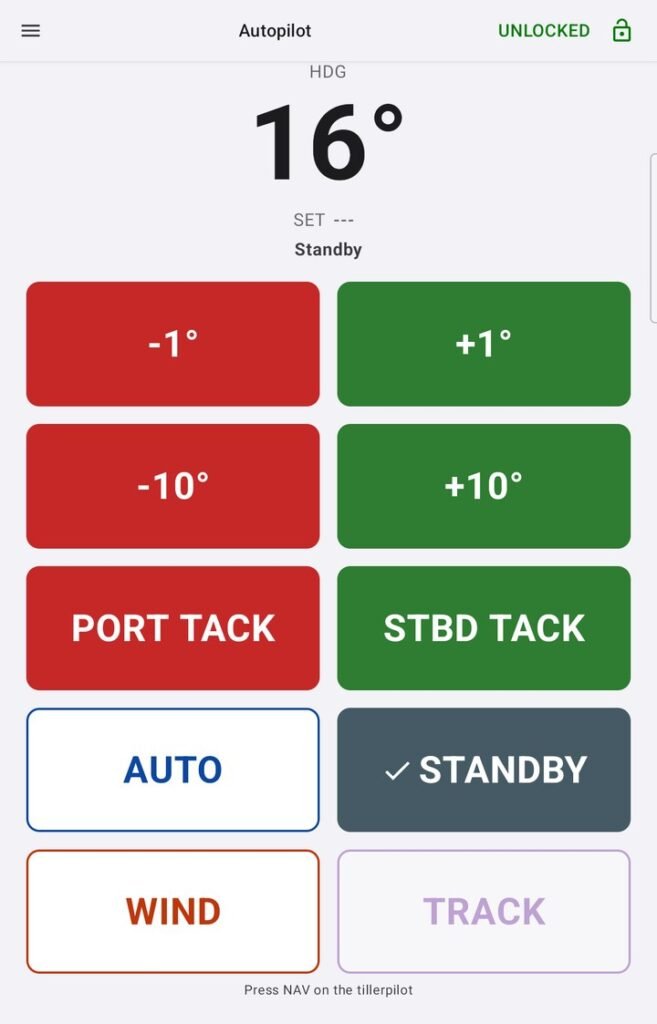
The HR22 remote that the controller stands in for has no NAV key, so the tillerpilot won’t take Track from a remote. The apps now show this: TRACK is greyed out, with “Press NAV on the tillerpilot” underneath. Press NAV on the pilot itself, and it steers the route the app is sending.
Route following is an aid alongside your chartplotter and a proper lookout, not a replacement for either. The chart in the app is an overlay and isn’t meant for navigation.
Route following is in beta. If anything doesn’t work as it should, please email admin@nauti-control.com and tell us what happened, your autopilot model and the phone or tablet you were using.
Firmware Updates From the App
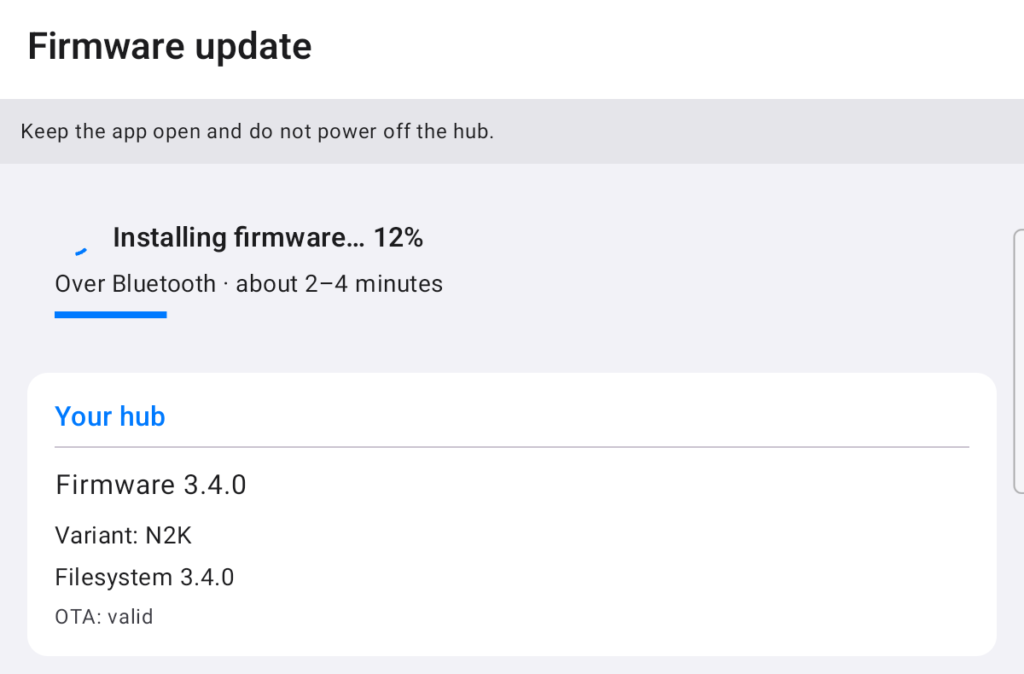
Once your controller is on v3.4, future firmware updates don’t need a computer or the web page. Open Firmware update in the app and it does the rest.
- The app compares your controller’s firmware with the latest release and tells you when an update is available.
- It downloads and checks both files first, so the install itself works offline, even at the mooring.
- It installs over Wi-Fi or over Bluetooth. Wi-Fi is quicker.
- It won’t start while the autopilot is steering. Put the pilot in Standby first.
- The controller only installs firmware made for it, and refuses a damaged download.
- If an update fails, or the new version doesn’t start properly, the controller goes back to its previous firmware by itself.
This release itself goes on the usual way, from the controller’s web page (see Updating Your Controller below). From then on, the app takes over.
Connect Over Wi-Fi
The connection screen now has two tabs. Bluetooth works exactly as before. On the Wi-Fi tab, the app finds your controller on the network by itself, or you can type its address in.
- Controller settings can be read and changed over Wi-Fi as well as Bluetooth.
- The connection is protected by the controller’s web admin password.
- It’s handy on a tablet at the chart table, or when a phone’s Bluetooth is already busy with a watch.
New Settings
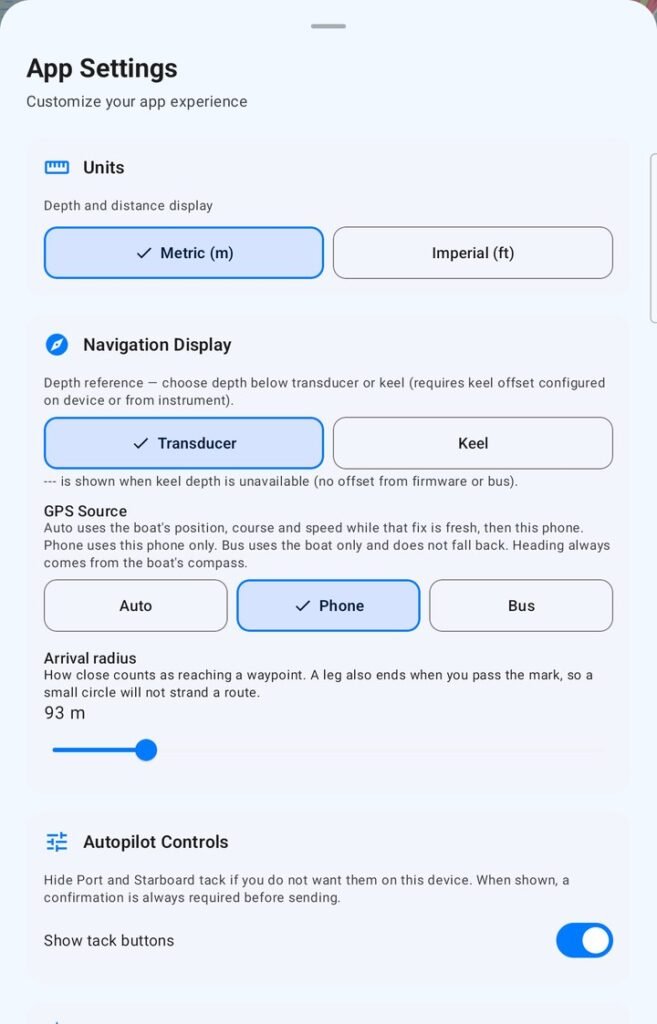
- GPS Source: choose where position, course and speed come from. Auto uses the boat’s GPS while its fix is fresh, then the phone’s. Phone uses the phone only. Bus uses the boat only. Heading always comes from the boat’s compass.
- Arrival radius: how close counts as reaching a waypoint, adjustable from about 18 m to 460 m.
OpenCPN Autopilot Control
On the ST Wireless controller, SeaTalk1 autopilots can now be driven from OpenCPN. The controller passes on the $STALK commands OpenCPN sends over NMEA TCP to the SeaTalk bus. Treat as BETA.
Steadier Connections
- Autopilot buttons pressed during a route are queued and retried, never silently dropped.
- Device Settings loads reliably after a reconnect.
- Bluetooth works on phones and plotters that only allow short Bluetooth messages.
- The controller manages its memory better with several phones, tablets and watches connected at once, over long sessions.
- The Bluetooth watchdog no longer restarts the controller it is there to rescue.
Updating Your Controller to v3.4
The v3.4 apps can’t update a controller that is still on an earlier version, so this update goes on in one of two ways: from the controller’s own web page, or with the USB Firmware Flasher on a computer. Once your controller is on v3.4, future updates come straight from the app.
Recommended: Update From the Controller’s Web Page (Keeps Your Settings)
This works for controllers on firmware V3.0 or newer. Your PIN, controller name, Wi-Fi settings, autopilot type and keel offset all stay as they are.
- Download the firmware file for your controller type and the filesystem file from Firmware Files below.
- Connect your phone, tablet or computer to the Nauti-Control Wi-Fi network.
- Open the controller web interface in your browser. When connected directly to the controller this is normally 192.168.1.1.
- Open the Update page.
- Under Firmware Update, select the firmware file and press Upload Firmware.
- Wait for the update to complete and for the controller to restart. It may be unreachable for up to a minute.
- Return to the Update page. Under FileSystem Update, select the filesystem file and press Upload FileSystem.
- Allow the controller to restart again.
Don’t disconnect power or close the page while an update is running.
Alternative: USB Firmware Flasher (Resets Your Settings)
Use this if your controller is below firmware V3.0, or if you can’t reach its web page.
The USB flasher installs a complete image, which puts the controller back to its factory settings. Afterwards you will need to set it up again: PIN, controller name, Wi-Fi, autopilot type and keel offset. Note your settings down before you start.
- Open the Nauti-Control Firmware Flasher using Google Chrome.
- Connect the controller to your computer using a USB data cable.
- Select and flash the correct firmware for your controller type.
- Set the controller up again, then reconnect your apps.
After v3.4: Updates From the App
From v3.4 on, you don’t need a computer or the web page. Open Firmware update in the app and it installs the next release over Bluetooth or Wi-Fi.
Firmware Files
- N2K Wireless: firmware-v3.4.0-n2k.bin
- ST Wireless: firmware-v3.4.0-seatalk.bin
- Filesystem: filesystem-v3.4.0.bin
- Make sure you install the correct firmware for your controller type.
- Do not install SeaTalk firmware on an N2K controller, or N2K firmware on a SeaTalk controller.
- On the web page route, install both the firmware and the filesystem files.
- After updating, the Update page should show both firmware and filesystem on v3.4.0.
Found a Problem?
If you spot a bug or anything not working as expected in v3.4, please email admin@nauti-control.com with your controller type (N2K or SeaTalk), your autopilot and your phone, tablet or watch. It helps us fix it quickly.
v3.4 lets Nauti-Control steer your pilot along a route, answer its questions from your phone or watch, connect over Wi-Fi, and keep itself up to date from the app.


Leave a Reply
You must be logged in to post a comment.