From v3.4, Nauti-Control can steer your autopilot along a route. Draw the route on the chart in the app, tap Follow now, and your pilot steers it mark by mark. Here is how, start to finish. Route following is a beta feature.

What You Need
- A Nauti-Control controller on firmware v3.4, and the v3.4 app on your phone or tablet.
- A compatible autopilot that steers in Track mode.
- A position for the app: your phone’s GPS, or a GPS on the boat’s network.
1. Open the Route Tool
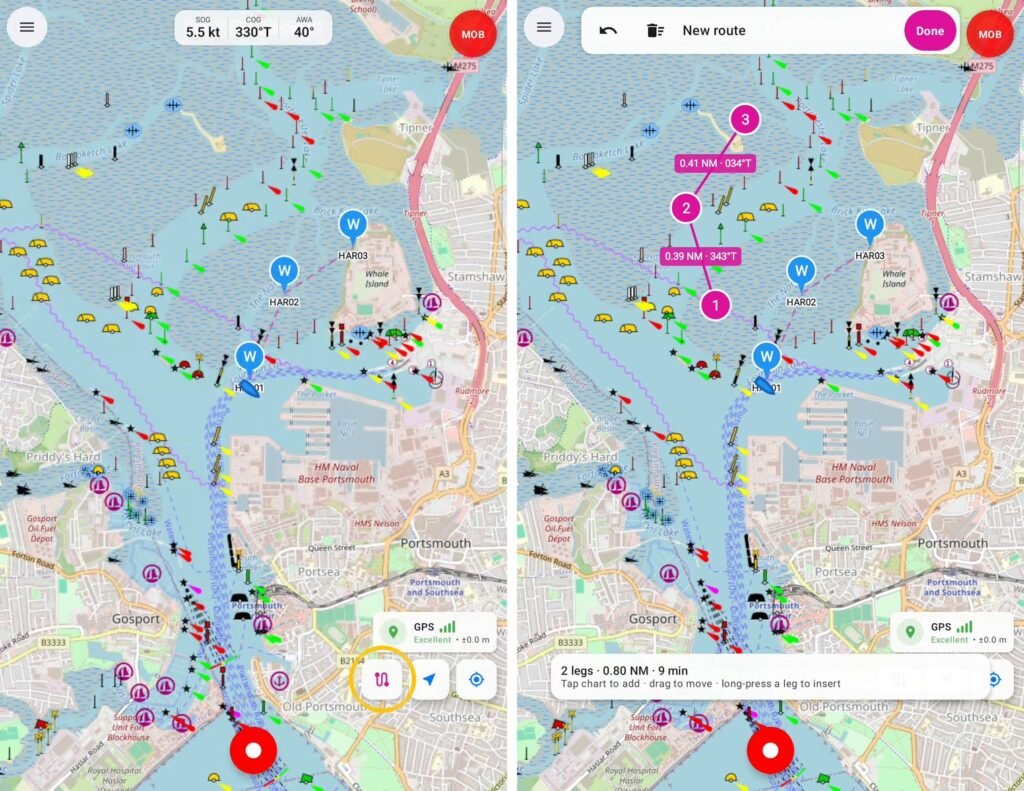
On the chart, tap the route button in the bottom corner. A New route bar appears at the top of the screen.
2. Add Your Marks
- Tap the chart to drop each mark, in the order you want to sail them.
- Drag a mark to move it.
- Long-press a leg to put a new mark in between.
- Undo takes back the last change. Clear route starts again.
Each leg is labelled with its distance and bearing, and the bar at the bottom shows the number of legs, the total distance and the time at 5 knots.
3. Tap Done, Then Follow Now
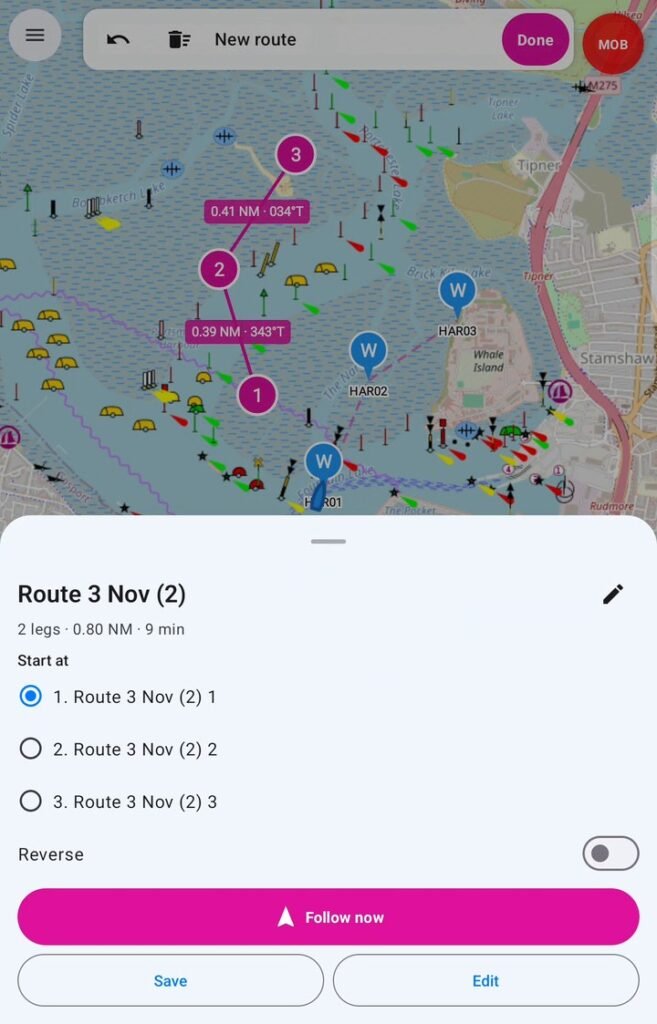
Tap Done. The route card opens:
- Start at picks the mark to sail to first, handy if you are joining part way along.
- Reverse sails the route the other way round.
- Save keeps it for later. Edit takes you back to the chart.
- Follow now starts it.
4. Your Pilot Steers the Route
The app sends the active leg to the controller, which puts it on the boat’s own network. Your pilot steers it in Track mode.
Follow now doesn’t engage the autopilot. Engage it yourself as usual: tap AUTO, then TRACK, on the app’s autopilot screen, or use the buttons on the pilot itself. The pilot then steers the route, leg by leg.
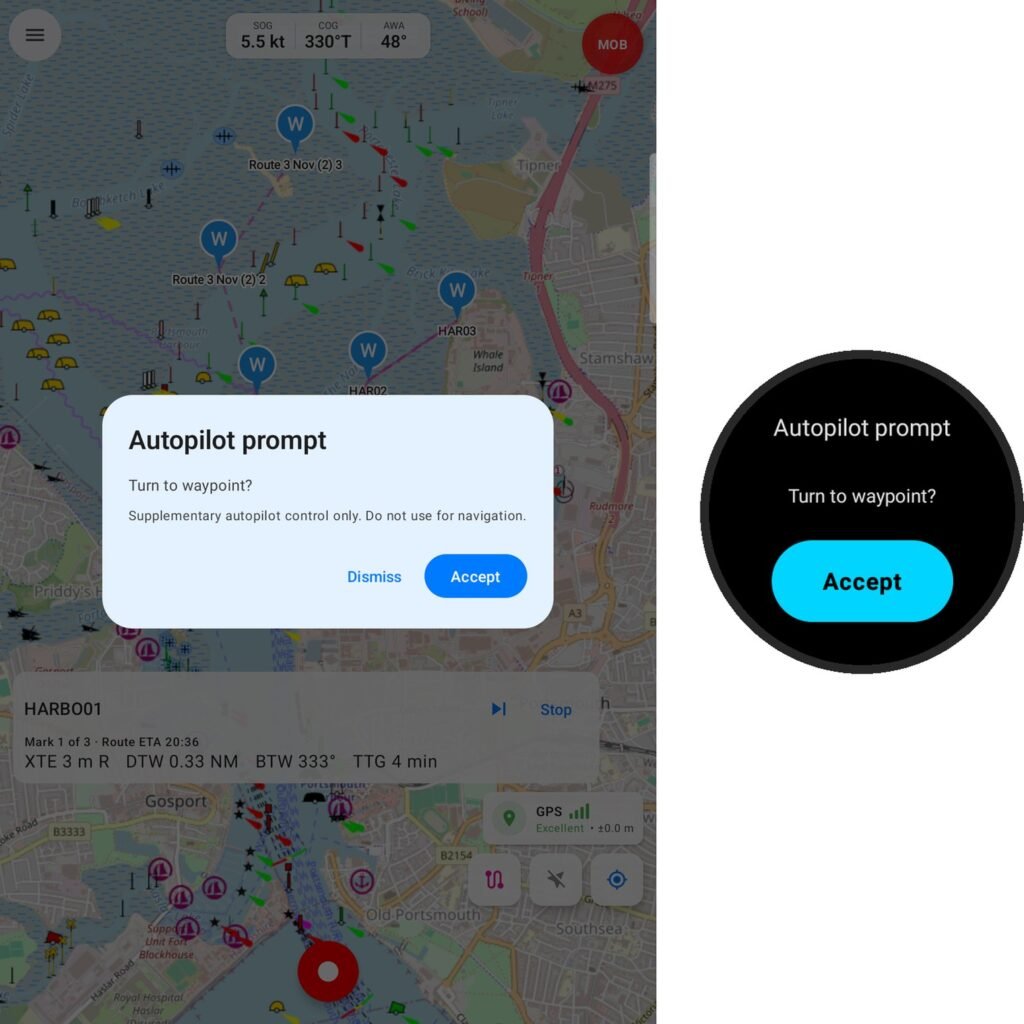
- Raymarine pilots ask “Turn to waypoint?” at each new leg. Answer it in the app (see below), or on the pilot.
- Garmin Reactor stays in Track from one leg to the next, with no question to answer.
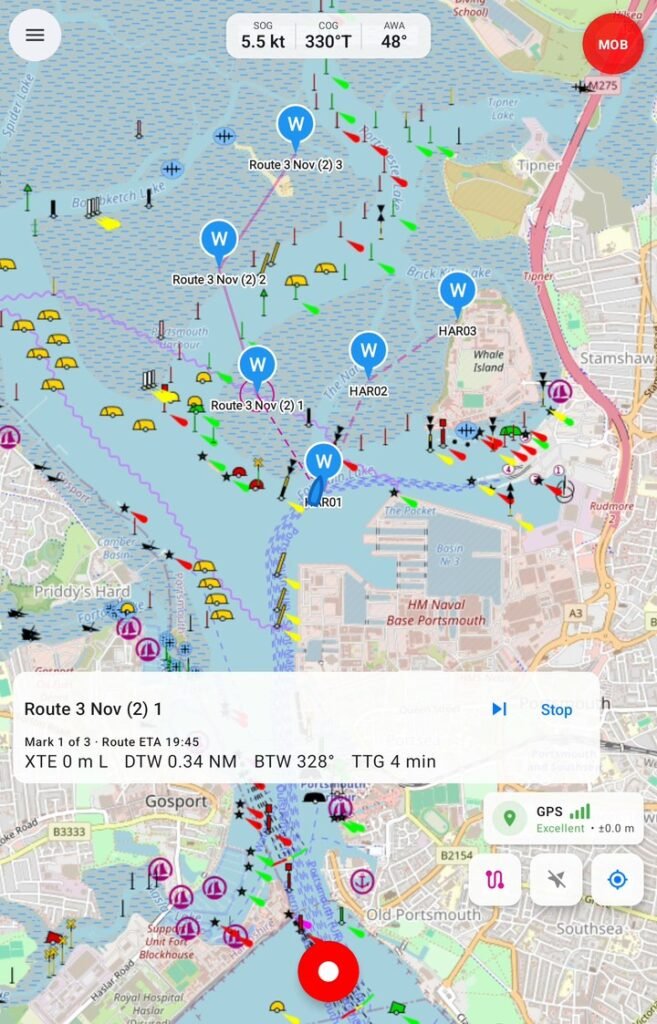
While you navigate, the bar at the bottom shows the mark you are heading for, the route ETA, your cross-track error (XTE), the distance and bearing to the mark (DTW, BTW) and the time to go (TTG).
- Skip moves on to the next mark if you can’t lay the one you are on.
- A leg also ends when you sail past the mark, so a tight arrival circle won’t strand the route.
- At the last mark, the app tells you the route is finished.
- Stop ends navigation and tells the boat it has ended.
Answering the Pilot
When the autopilot asks “Turn to waypoint?” at a new leg, the question comes up in the app with an Accept button. It also appears on your Garmin, Apple Watch or Wear OS watch, with a buzz, so you can answer it from the bow.
Good to Know
- You can also import routes as a GPX file from your plotter or planning software, from the routes list.
- On a Simrad TP22 or TP32 (HR22 mode), press NAV on the tillerpilot itself; the app’s TRACK button is greyed out because the HR22 remote has no NAV key.
- If the connection to the controller drops, navigation stops and the pilot is no longer steered to the mark. The route is kept, so you can resume it once you’re connected again.
Route following is an aid alongside your chartplotter and a proper lookout, not a replacement for either. The chart in the app is an overlay and isn’t meant for navigation. It’s in beta: if anything doesn’t work as it should, please email admin@nauti-control.com and tell us what happened, your autopilot model and your phone or tablet.



Leave a Reply
You must be logged in to post a comment.